 Saturday, June 21, 2008 @ 8:05 AM Saturday, June 21, 2008 @ 8:05 AM
Tutorial: Icon Set 1 This is a tutorial for those who wanna learn how to edit their icons. I used Adobe Photoshop Elements to this. Just a little bit of playing around with the layers can create a truly wonderful effect. Preview: 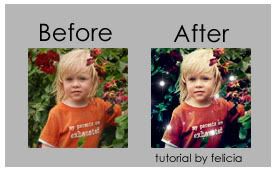 Remember to play around with the colours, blend, layers and saturations depending on your picure. Hope you found the tutorial useful. XD Labels: Tutorials xoxo |

profile 
Name: Felicia
Hey dearies, remember to credit any image that you use alright? Thank you and have fun while browsing!
navigation Advertisments Icons Pictures Resources Snapcards Tutorials Wallpapers Tagboard affiliates Flavia Liting Pearlyn Samantha Wanna be an affie? Just tag! Link Me: 
credits skin by: Jane |

1) This is my base image:
Go to Enhance--> Adjust Colour--> Hue/Saturation and set saturation level to -31.
2)Duplicate the image. Set the layer to screen and opacity 44%. It should turn out looking like this:
3)Create a new layer and fill it with colour #0316CC. Set this layer to exlusion, opacity 30%. It would look like this:
4)Duplicate the original image (the saturated one, layer 1) and set it to overlay. The colours didn't show up nicely at 100% therefore I changed it to 75%. You can play around with the opacity depending on your image. My icon looked like this:
5)Next, create a new layer. Fill it with a gradient with colour #5BB0F1 on one end, and white on the other. Click on your gradient icon and click edit to get the desired gradient.
Drag the gradient tool diagonally across the layer.
6)Set the layer to colour burn. And it will end up looking like this:
[optional]
As I found the kid's face too dark, i erased the area around it with a 27px eraser brush. There's not much difference but I preferred this new image.
7)Lastly, create a new layer, and add some brushes! To make this icon simple, I just applied some starry brushes which I have absolutely no idea where I got them from. If you do, please feel free to notify me so that I may credit the source. Thanks.
And the finishing product:
Tadah~